> For the complete documentation index, see [llms.txt](https://docs.jetadmin.io/llms.txt). Markdown versions of documentation pages are available by appending `.md` to page URLs; this page is available as [Markdown](https://docs.jetadmin.io/user-guide/synced-tables/create-a-sync-connection.md).
# Create a sync connection
Connect a supported source using Sync and verify its records.
Use a sync connection to copy records from a supported source into Jet Databases and keep them refreshed.
## Before you start
Have access to the source and its connection credentials. Follow its [Data Sources guide](/user-guide/data-sources.md) to select the account, tables, or collections you need. Sync is available only for supported integrations.
## Connect and verify
1. Add the source and complete its authentication steps.
2. When offered a connection type, select **Sync connection**.
3. Complete the source's setup and open the resource in **Data**.
4. Check the sync status and last sync time.
5. Compare a few records, including their IDs and field values, with the original source.

If **Sync connection** is not offered, use the connector's available connection mode or contact support about sync availability.
## REST API sync setup
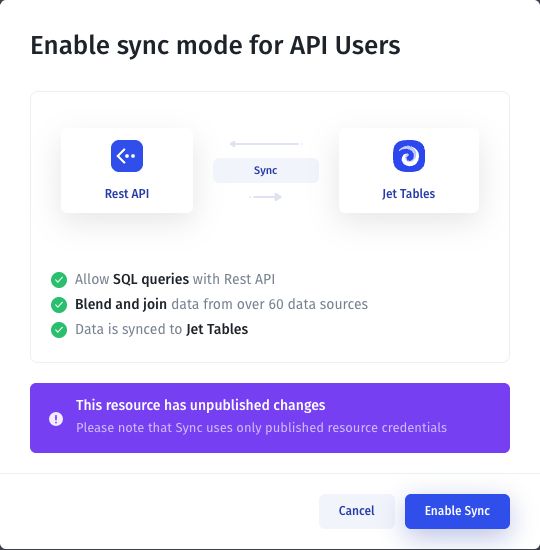
For an API collection that offers **Sync to Jet Tables**, review the confirmation dialog. If it reports unpublished resource changes, publish the intended resource configuration before enabling sync: the dialog states that sync uses published resource credentials.
This setup view shows the publishing prerequisite; it does not show a completed sync.
## Next steps
* Added or changed a source table or field? Follow [Sync schema changes](/user-guide/synced-tables/sync-schema-changes.md).
* Changed record values? Follow [Refresh data and manage sync](/user-guide/synced-tables/refresh-data-and-manage-sync.md).
* Need data from two sources in one result? Follow [Join data from multiple sources](/user-guide/synced-tables/join-data-from-multiple-sources.md).
* Missing records or errors? Follow [Troubleshoot syncing](/user-guide/synced-tables/troubleshoot-syncing.md).
---
# Agent Instructions
This documentation is published with GitBook. GitBook is the documentation platform designed so that both humans and AI agents can read, navigate, and reason over technical content effectively. Learn more at gitbook.com.
## Querying This Documentation
If you need additional information that is not directly available in this page, you can query the documentation by asking a question.
Perform an HTTP GET request on the following URL with the `ask` and `goal` query parameters:
```
GET https://docs.jetadmin.io/user-guide/synced-tables/create-a-sync-connection.md?ask=&goal=
```
`ask` is the immediate question: it should be specific, self-contained, and written in natural language.
`goal` is what the user is ultimately trying to achieve, the reason they need the answer. Sharing it helps GitBook give you a better, more relevant answer. A goal is most helpful when it describes the outcome the user wants rather than restating the question. For example, with `ask=how do I create an API token`, a goal like `automate deployments from our CI pipeline` lets GitBook tailor the answer to that use case.
The response will contain a direct answer to the question and relevant excerpts and sources from the documentation.
Use this mechanism when the answer is not explicitly present in the current page, you need clarification or additional context, or you want to retrieve related documentation sections.