> For the complete documentation index, see [llms.txt](https://docs.jetadmin.io/llms.txt). Markdown versions of documentation pages are available by appending `.md` to page URLs; this page is available as [Markdown](https://docs.jetadmin.io/user-guide/data/navigate-the-data-editor.md).

# Navigate the Data Editor

Open a table, organize fields, inspect cells, and find guides for common data tasks.

Use the Data Editor to inspect records, arrange fields, and work with the data connected to your app.

## Open your data

1. Open **Data** in your app.
2. Select the resource you want to work with.
3. Select a table or collection to display its records.

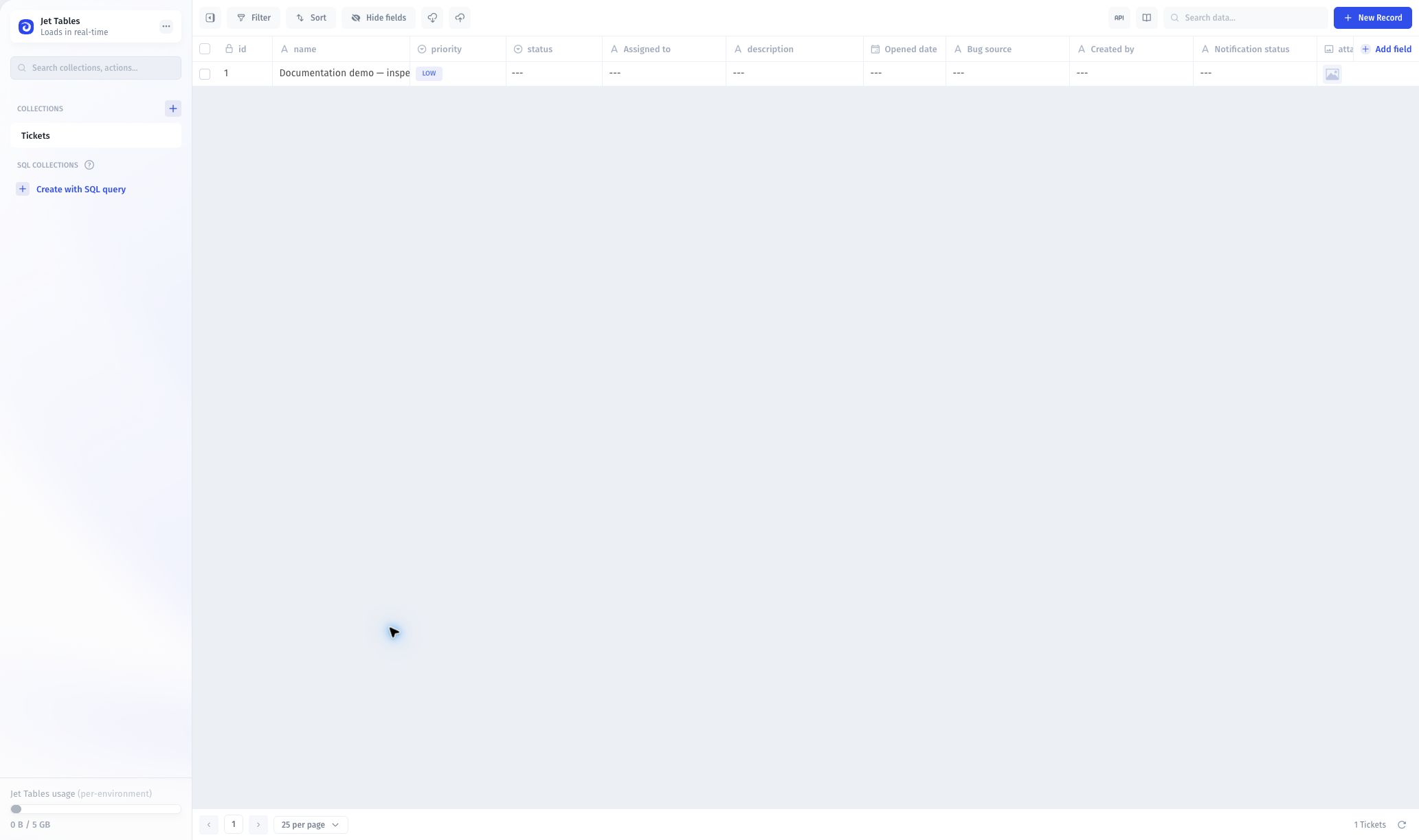
Each row represents a record, and each column represents a field. Use the table controls to search, filter, and sort the records you need.

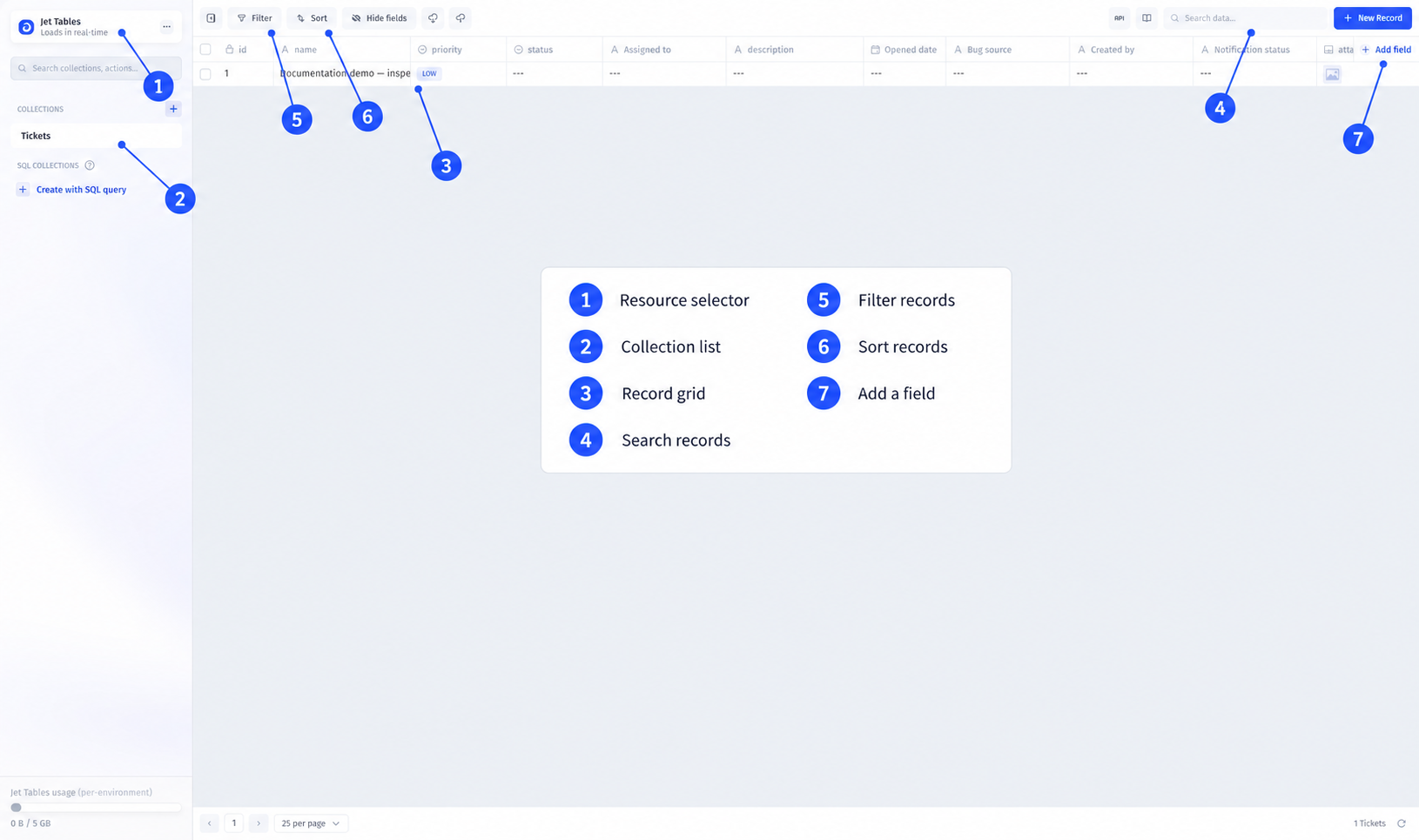
<figure><img src="https://3448227606-files.gitbook.io/~/files/v0/b/gitbook-x-prod.appspot.com/o/spaces%2F-LQ08RFAKZvFADEiXKFy%2Fuploads%2FKmiakiOfzoJhlJHD8H70%2FS09d-data-editor-annotated.png?alt=media" alt="Data Editor with seven numbered controls: resource, collection, grid, search, filter, sort, and add field"><figcaption><p>Annotated overview based on a captured Tickets table. Callouts were added with AI assistance.</p></figcaption></figure>

1. Resource selector
2. Collection list
3. Record grid
4. Search records
5. Filter records
6. Sort records
7. Add a field

<details>

<summary>View the unannotated Data Editor screenshot</summary>

<figure><img src="https://3448227606-files.gitbook.io/~/files/v0/b/gitbook-x-prod.appspot.com/o/spaces%2F-LQ08RFAKZvFADEiXKFy%2Fuploads%2Fb5mrB55sllwh5q6KX199%2FS09-data-editor.jpg?alt=media" alt="Unannotated Tickets Data Editor"><figcaption><p>Original screenshot without numbered callouts.</p></figcaption></figure>

</details>

## Filter records

Select **Filter**, choose a field, and set its condition and value. For example, select **priority**, **equals**, and **Low**.

<figure><img src="https://3448227606-files.gitbook.io/~/files/v0/b/gitbook-x-prod.appspot.com/o/spaces%2F-LQ08RFAKZvFADEiXKFy%2Fuploads%2FXHdnqzujltBIlnmBpjX3%2FS09b-filter-configuration.jpg?alt=media" alt="Priority filter with equals and Low selected"><figcaption><p>Configure the field, condition, and value.</p></figcaption></figure>

Close the filter panel to apply the filter, then check the visible records. The matching demo ticket below has ID 1 and Low priority.

<figure><img src="https://3448227606-files.gitbook.io/~/files/v0/b/gitbook-x-prod.appspot.com/o/spaces%2F-LQ08RFAKZvFADEiXKFy%2Fuploads%2FpcH1WtBPrR9HZv4leiwn%2FS09c-filtered-tickets.jpg?alt=media" alt="Tickets filtered to Low priority with record ID 1"><figcaption><p>The active filter narrows the view without changing the stored records.</p></figcaption></figure>

To remove a filter, open its chip and select the delete-filter icon. View filters are not access-control rules.

## Reorder fields

Drag a column header to move the field within the table. Put the fields you use most often together.

{% @arcade/embed url="<https://app.arcade.software/share/SlDLozIiOD4fV8QWMEbt>" flowId="SlDLozIiOD4fV8QWMEbt" %}

## Pin or hide fields

Pin a field to keep it visible as you move across the table. Hide fields you do not need in the current view; hiding a field does not delete it.

{% @arcade/embed url="<https://app.arcade.software/share/DAaYylnN25cYaQsFMh9T>" flowId="DAaYylnN25cYaQsFMh9T" %}

For field configuration, see [Add and configure fields](/user-guide/data/fields/add-and-configure-fields.md).

## Inspect a cell

Double-click a cell to open its full details. Use this view to inspect long text, JSON, or values that do not fit in the grid.

{% @arcade/embed url="<https://app.arcade.software/share/KbyrQChYmH7q0i8bfXoQ>" flowId="KbyrQChYmH7q0i8bfXoQ" %}

## Review activity

Use the table's activity logs to inspect recorded changes, including who made an update and when.

{% @arcade/embed url="<https://app.arcade.software/share/tDwjb081GwjNPTLeWvm7>" flowId="tDwjb081GwjNPTLeWvm7" %}

## Work with multiple cells

Select multiple cells to work across records, or drag values across rows. Review the selected records and fields before applying a bulk change.

{% @arcade/embed url="<https://app.arcade.software/share/Zr1IZ7W13rJJVoQG2E8i>" flowId="Zr1IZ7W13rJJVoQG2E8i" %}

Follow [Multi-Editing and Bulk Actions](/user-guide/data/records/bulk-edits-and-actions.md) for more detail.

## Continue with a task

* [Add and configure fields](/user-guide/data/fields/add-and-configure-fields.md): configure your fields.
* [Relations View](/user-guide/data/relationships/relations-view.md): explore related records.
* [Computed fields](/user-guide/data/computed-fields.md): calculate field values.
* [AI Fields](/user-guide/data/fields/ai-fields.md): work with AI-assisted fields.
* [Sync schema changes](/user-guide/synced-tables/sync-schema-changes.md): refresh missing tables or fields.
* [Files & storage](/user-guide/files-and-storage.md): connect storage and manage files.


---

# Agent Instructions
This documentation is published with GitBook. GitBook is the documentation platform designed so that both humans and AI agents can read, navigate, and reason over technical content effectively. Learn more at gitbook.com.

## Querying This Documentation
If you need additional information that is not directly available in this page, you can query the documentation by asking a question.

Perform an HTTP GET request on the following URL with the `ask` and `goal` query parameters:

```
GET https://docs.jetadmin.io/user-guide/data/navigate-the-data-editor.md?ask=<question>&goal=<user_goal>
```

`ask` is the immediate question: it should be specific, self-contained, and written in natural language.
`goal` is what the user is ultimately trying to achieve, the reason they need the answer. Sharing it helps GitBook give you a better, more relevant answer. A goal is most helpful when it describes the outcome the user wants rather than restating the question. For example, with `ask=how do I create an API token`, a goal like `automate deployments from our CI pipeline` lets GitBook tailor the answer to that use case.

The response will contain a direct answer to the question and relevant excerpts and sources from the documentation.

Use this mechanism when the answer is not explicitly present in the current page, you need clarification or additional context, or you want to retrieve related documentation sections.