> For the complete documentation index, see [llms.txt](https://docs.jetadmin.io/llms.txt). Markdown versions of documentation pages are available by appending `.md` to page URLs; this page is available as [Markdown](https://docs.jetadmin.io/jet-bridge-deployment/environments-releases-and-version-control/version-control.md).
# Version Control
Learn how to version apps or revert changes to a previous state.
This guide describes the earlier snapshot and release interface. For the current AI App Builder panel with **Preview version**, **Revert version**, and **Show changes**, see [Version History](/ai-app-builder/test-and-publish/version-history.md).
Working changes, saved snapshots, and the published app are different states. Confirm the release behavior of your app's builder before making a change. Do not assume an editor save immediately publishes to users.
Use a named snapshot to identify the app configuration being reviewed. Test the intended release before publishing, then verify its actual app URL with a representative user. A snapshot does not guarantee disruption-free deployment.
The older interface below provides a release/snapshot list. Its screenshots are retained for Classic apps that expose these controls; they do not establish the history retention or coverage of your current deployment.
### Releases
{% hint style="info" %}
Check the release controls and entitlement available to your app. This historical guide does not establish current plan eligibility.
{% endhint %}
Before selecting a snapshot, confirm the app and environment. Creating a snapshot records a point to review; use the publication controls available in your interface to make a reviewed release available to users.
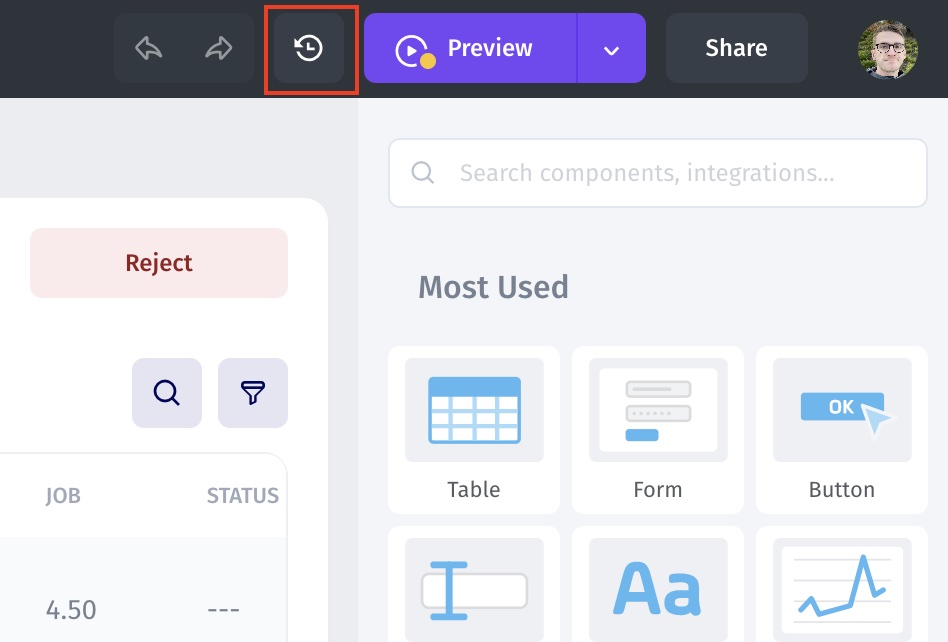
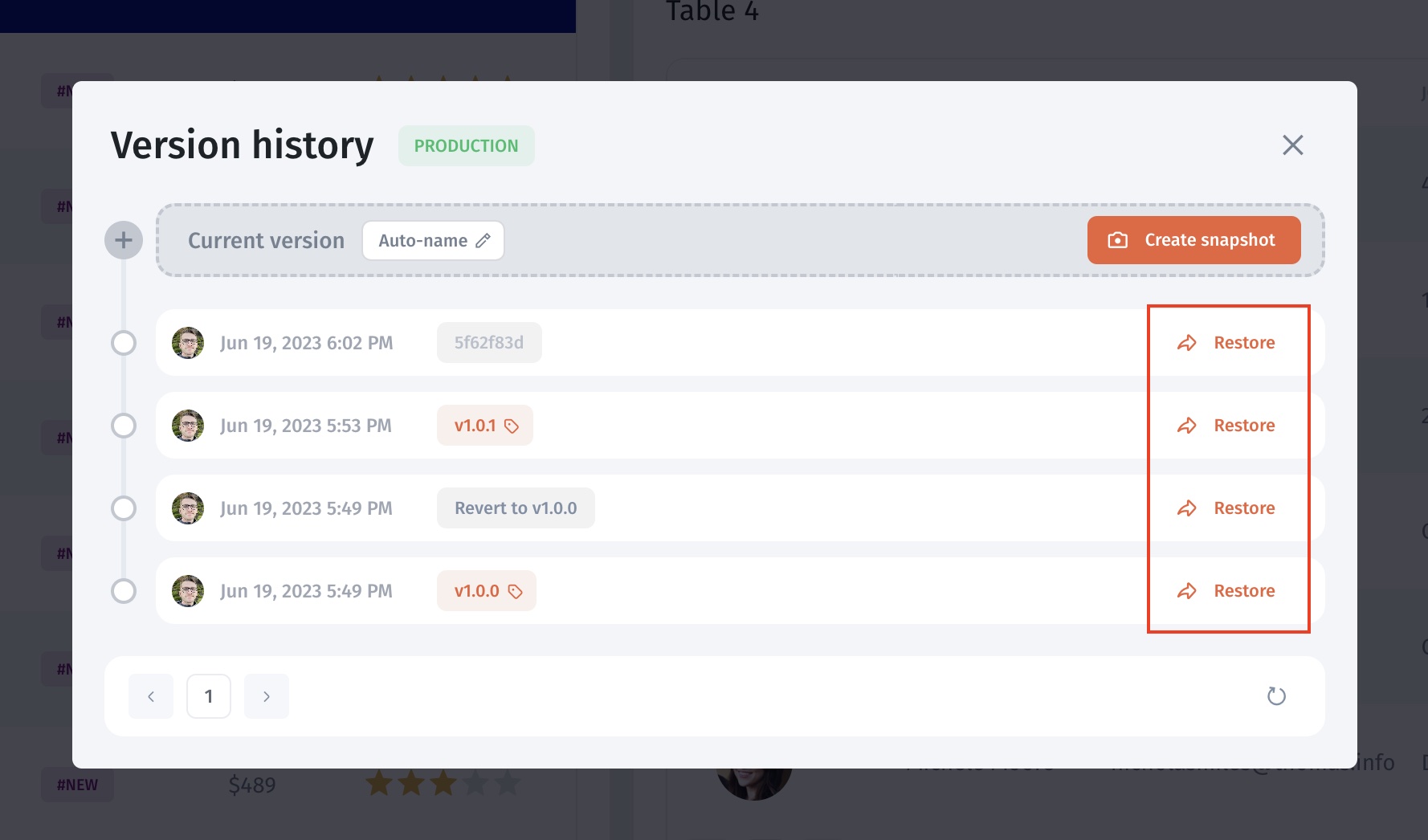
1. Click on Version History on the right-top bar
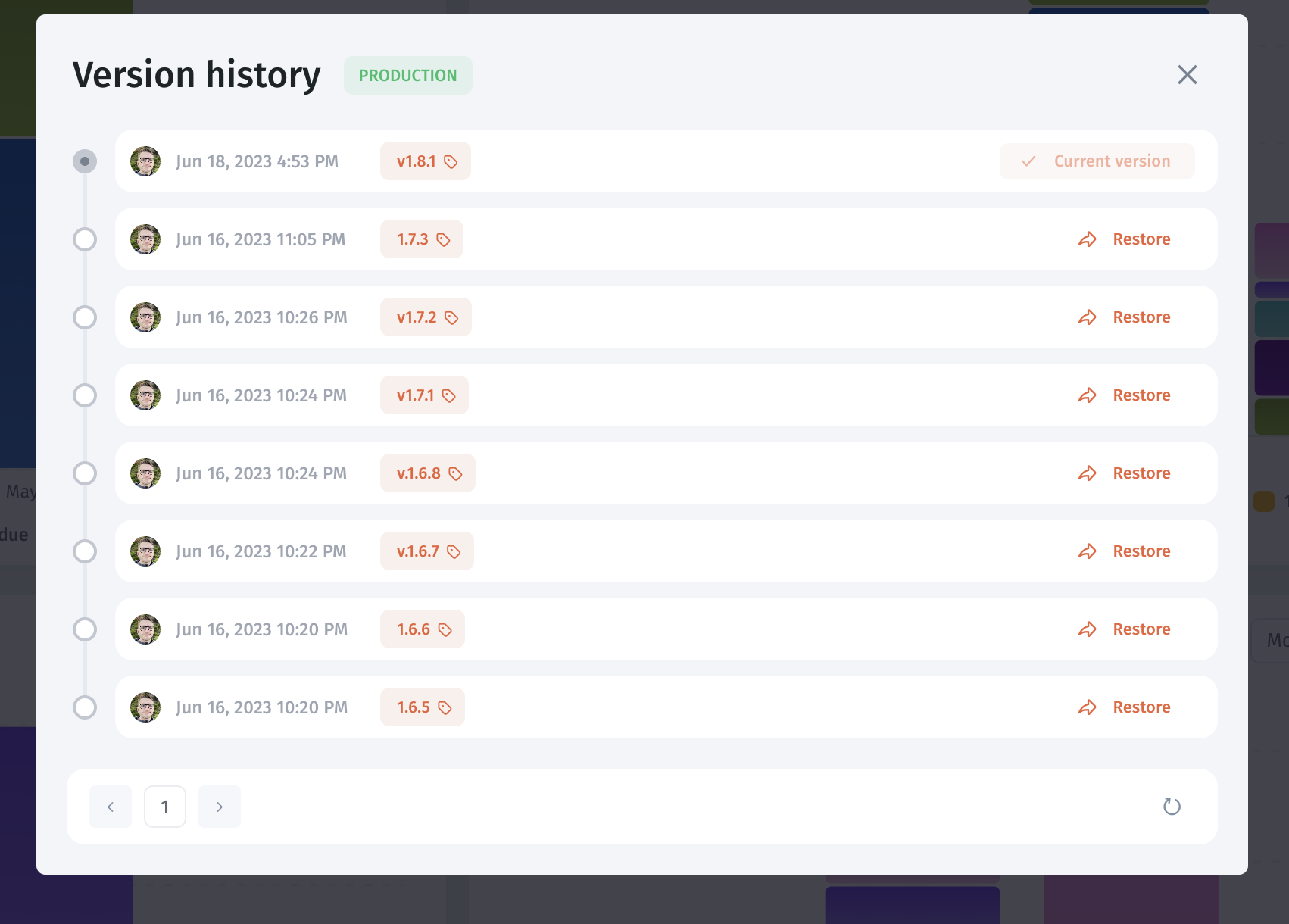
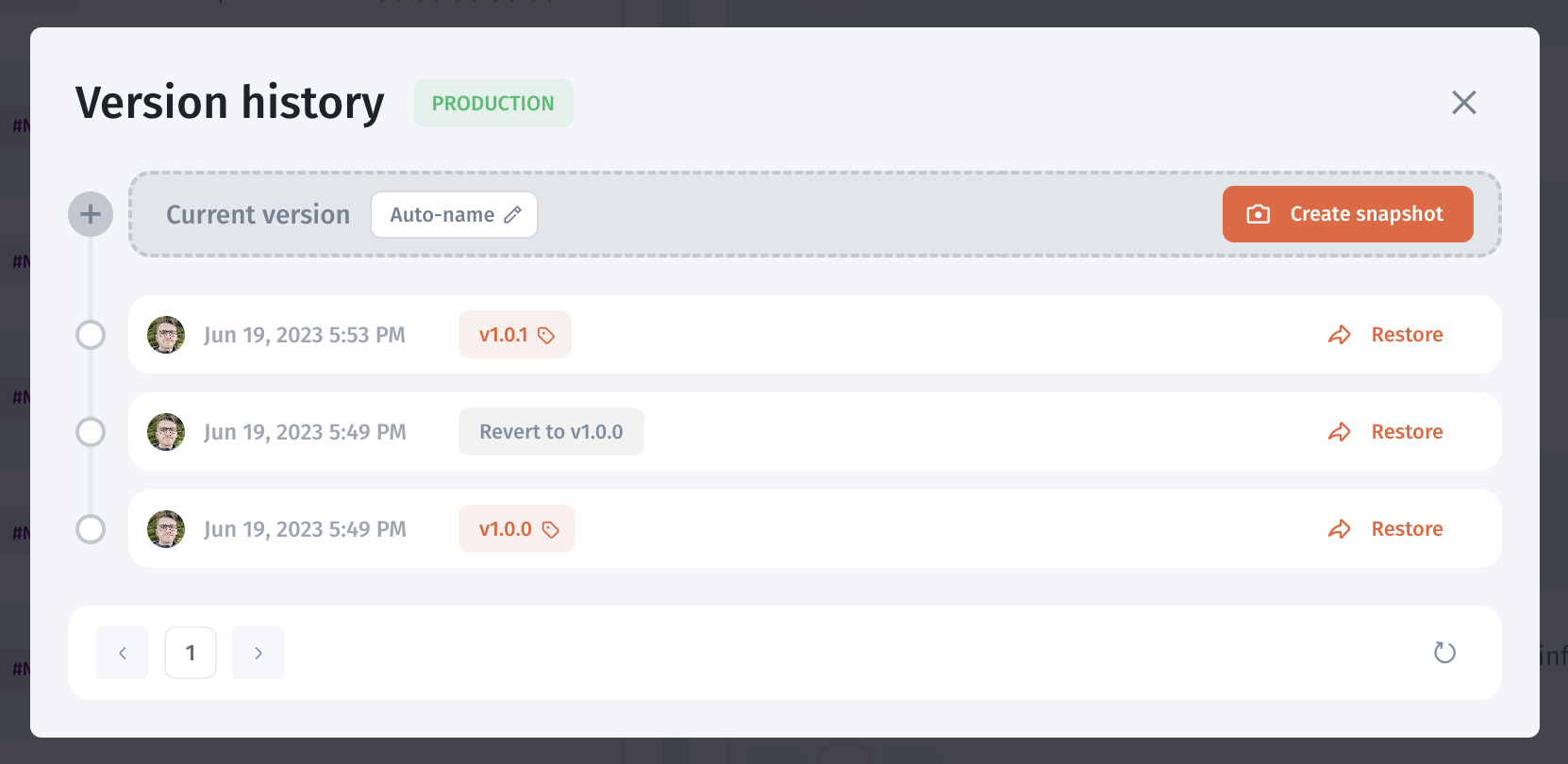
2. Check the list of releases/snapshots. You can do the following actions:
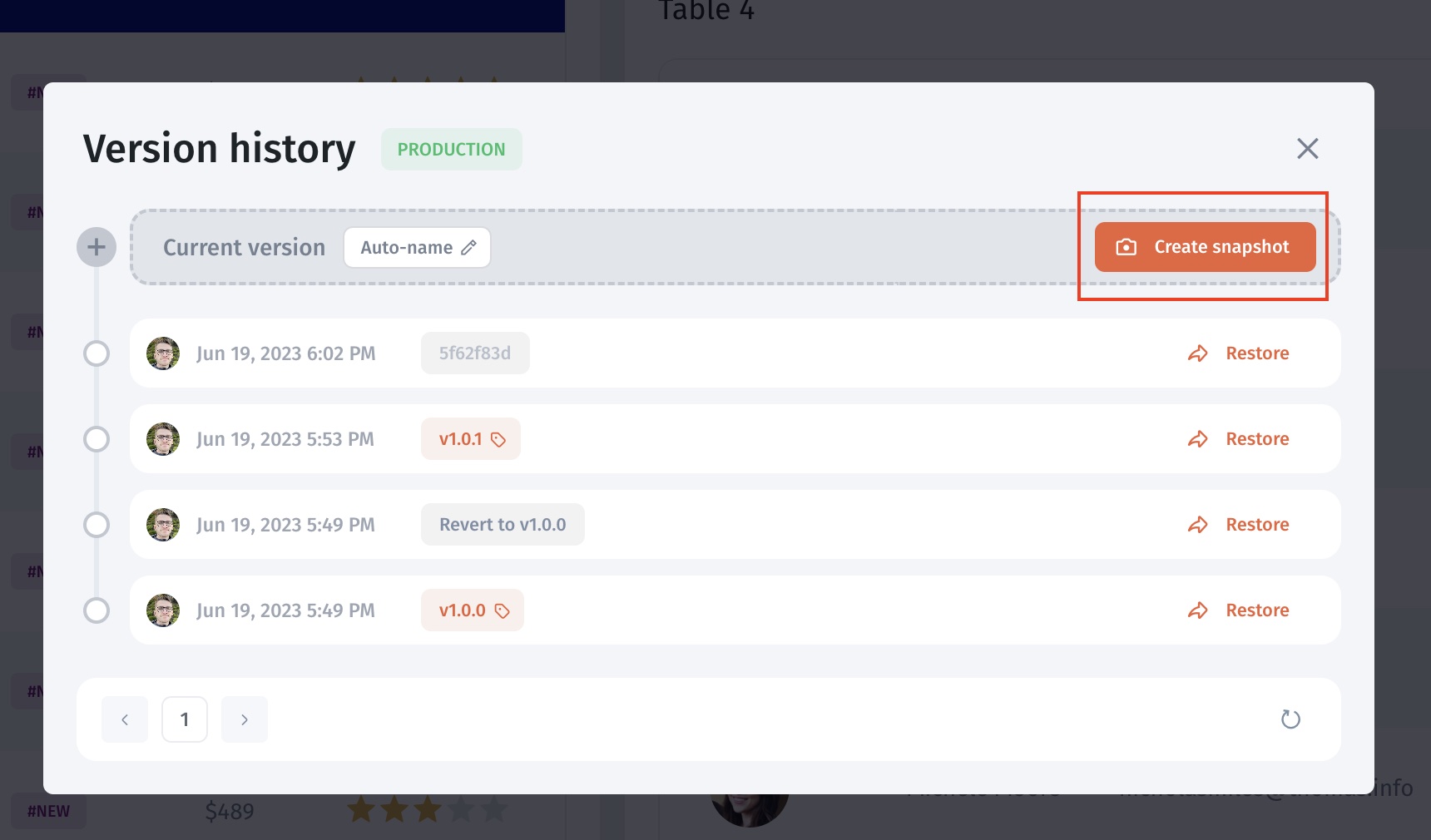
* Create a new release
* Revert changes
* Set up a release name
### Create a new release
Click **Create snapshot** to create a version for release. You can also specify a release name or auto-generate it.
### Revert changes
In the older snapshot interface, select a historical point and inspect the **Restore** action. Before applying it, record the current configuration and confirm the restore scope. Restoring app configuration is not a guarantee that database writes, messages, or other external effects will be reversed.
The earlier interface can display a **Reverted changes** entry. After restoring, inspect the available history and repeat page, data-action, and permission checks. Verify the live app separately before treating recovery as complete.
### Creating a backup version
{% hint style="info" %}
Confirm backup coverage, scheduling, and retention for your deployment. A manually downloaded configuration backup does not establish that connected records and files are included.
{% endhint %}
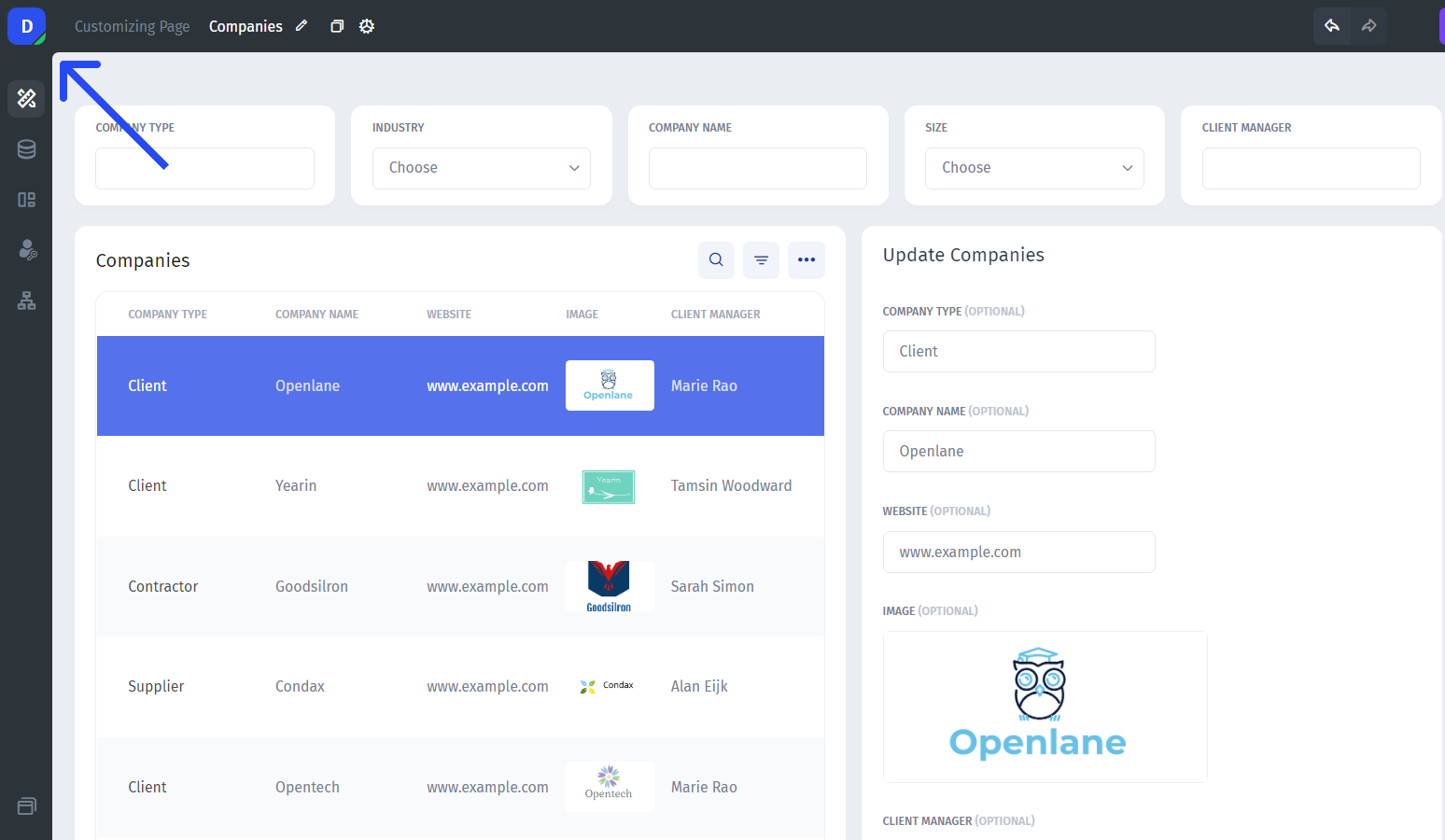
To save a stable version, open your app in the builder mode and click on the "App" icon in the top left corner
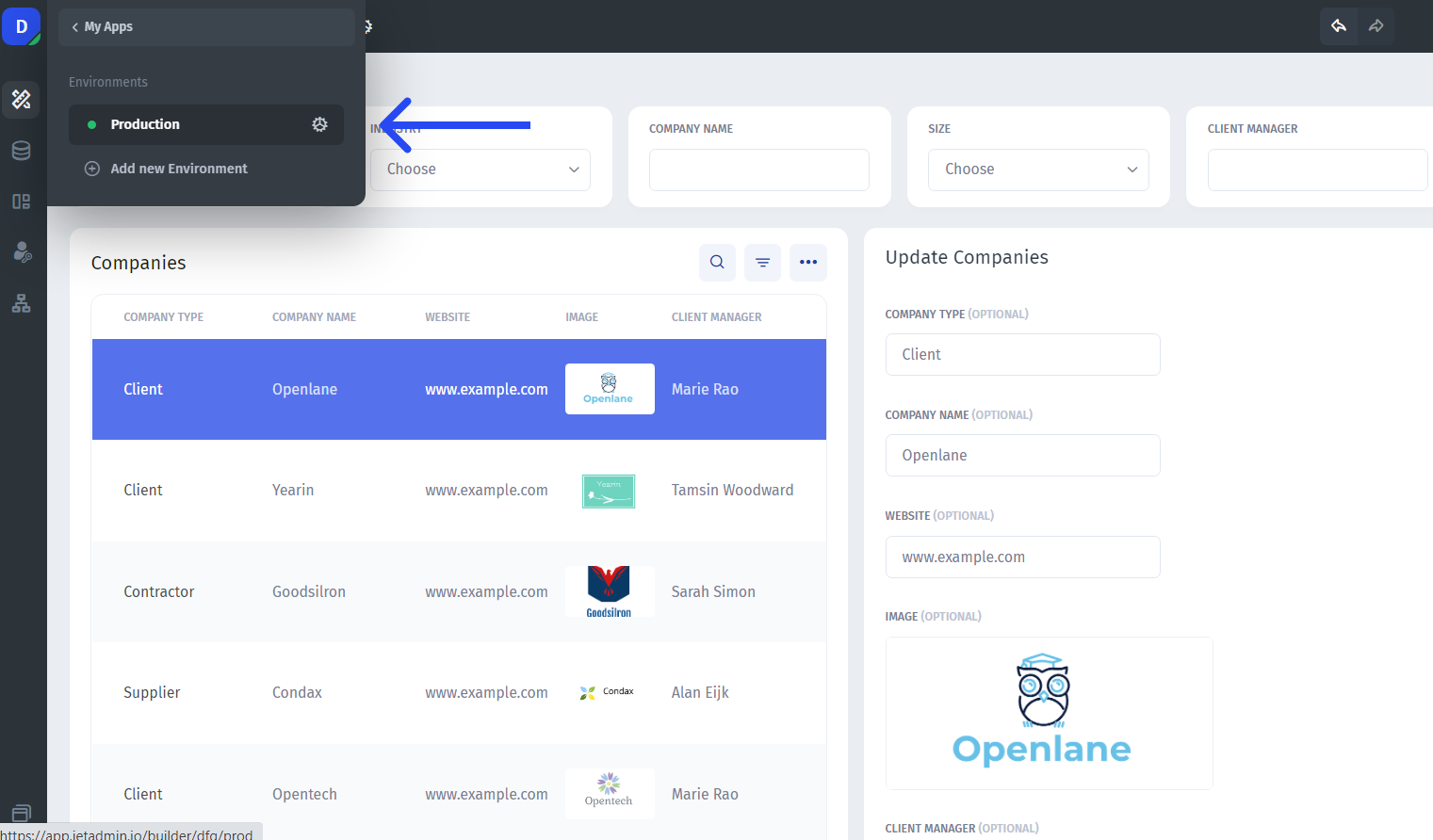
Then choose the environment you want to save the version from (click the gear icon to drill down)
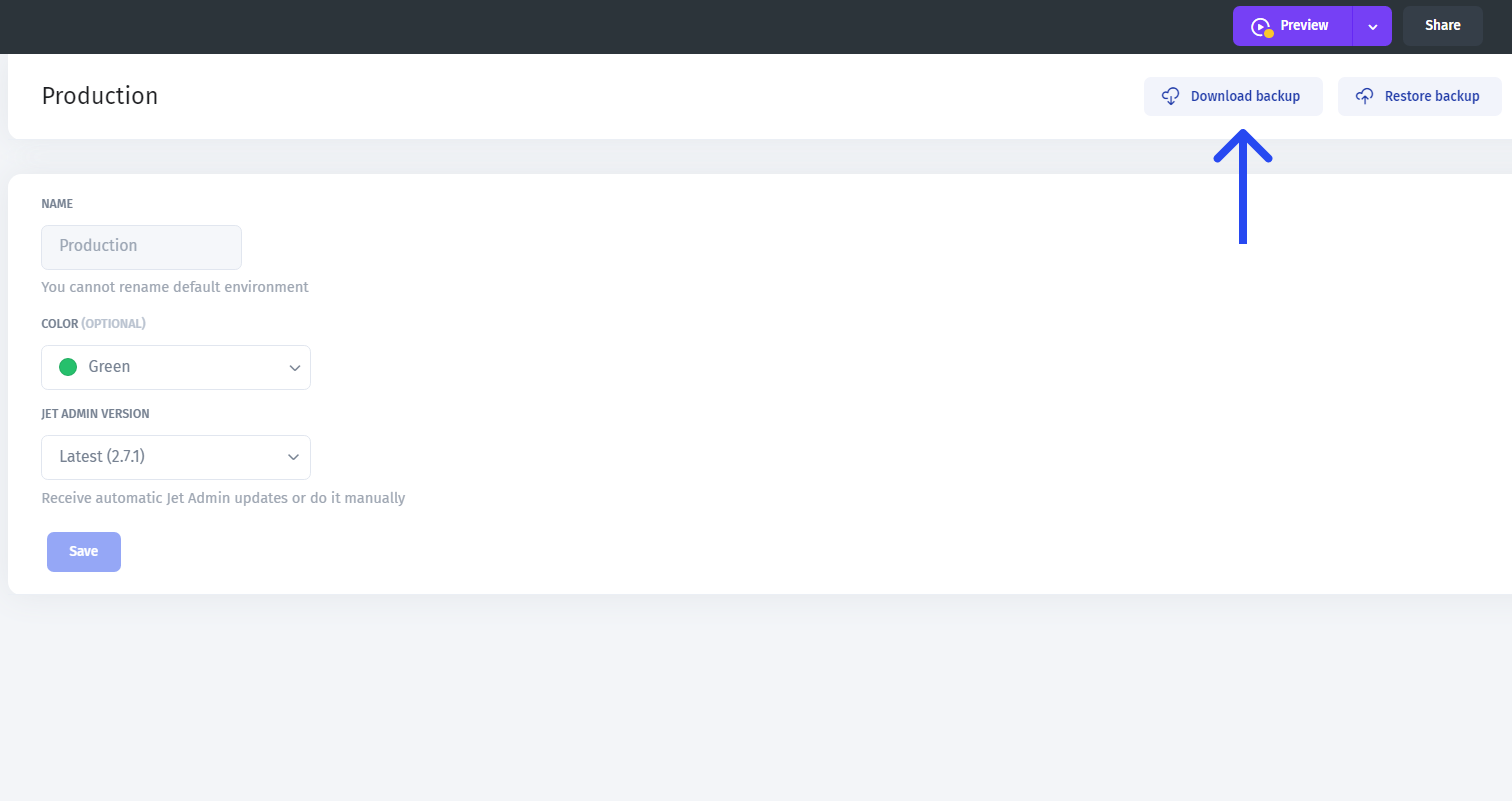
After that, you can **download the current configuration** and store it in your local storage
### Restoring a previous version
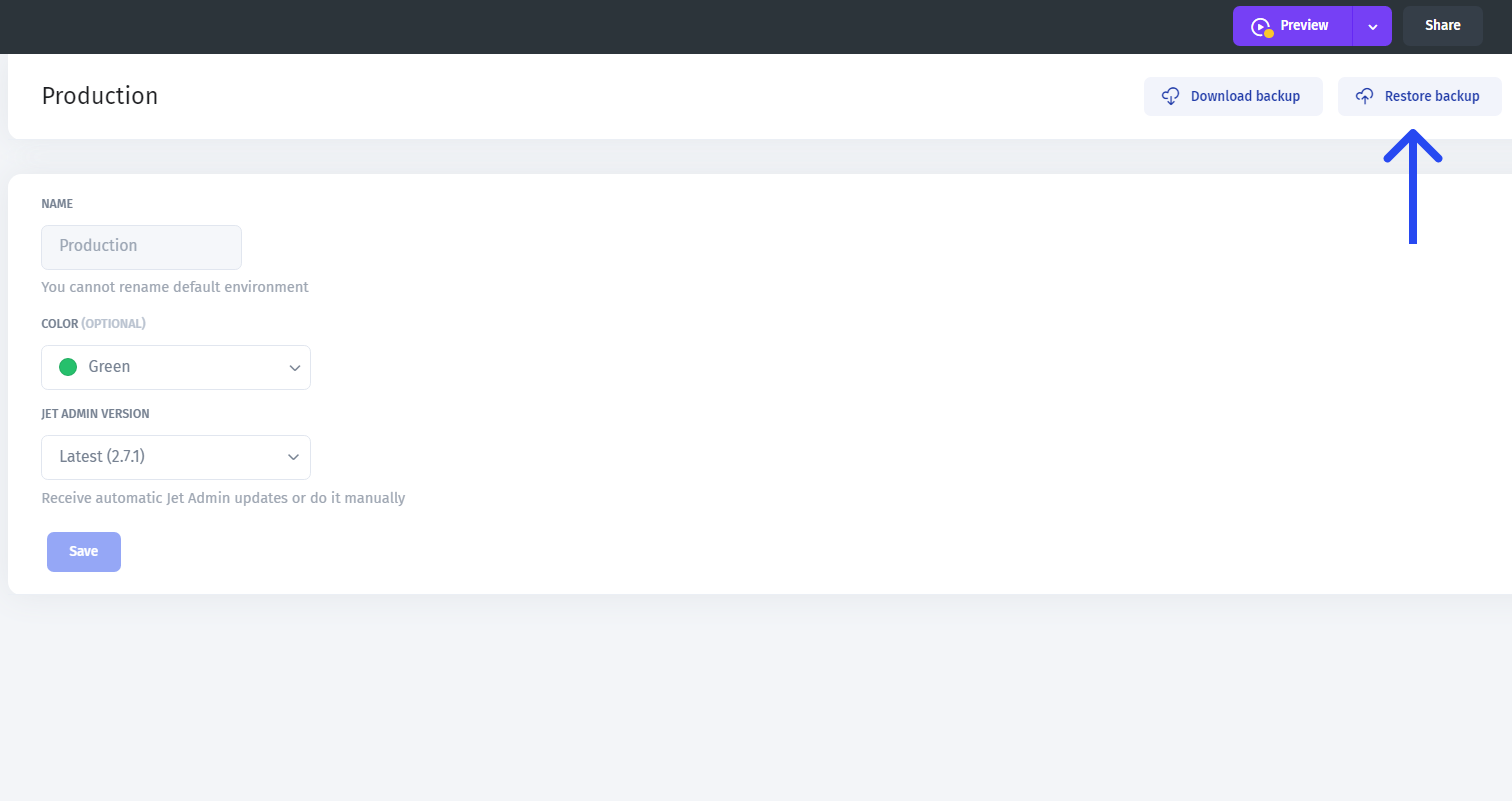
For the earlier upload-based restore interface, choose the intended backup file only after confirming the target environment and compatibility. Review the restored configuration, resource connections, data actions, and user permissions. Use [Environments](/jet-bridge-deployment/environments.md) for the current Download backup and Restore backup entry points.
## Recovery acceptance checks
* Confirm the intended version and environment.
* Verify a representative page and a read-only data query.
* Check allowed and denied access with test identities.
* Compare connected records and files independently of app configuration.
* Confirm the app address used by end users shows the intended state.
The procedures and retained media in this legacy reference were editorially reviewed; a restore was not performed during this update.
---
# Agent Instructions
This documentation is published with GitBook. GitBook is the documentation platform designed so that both humans and AI agents can read, navigate, and reason over technical content effectively. Learn more at gitbook.com.
## Querying This Documentation
If you need additional information that is not directly available in this page, you can query the documentation by asking a question.
Perform an HTTP GET request on the following URL with the `ask` and `goal` query parameters:
```
GET https://docs.jetadmin.io/jet-bridge-deployment/environments-releases-and-version-control/version-control.md?ask=&goal=
```
`ask` is the immediate question: it should be specific, self-contained, and written in natural language.
`goal` is what the user is ultimately trying to achieve, the reason they need the answer. Sharing it helps GitBook give you a better, more relevant answer. A goal is most helpful when it describes the outcome the user wants rather than restating the question. For example, with `ask=how do I create an API token`, a goal like `automate deployments from our CI pipeline` lets GitBook tailor the answer to that use case.
The response will contain a direct answer to the question and relevant excerpts and sources from the documentation.
Use this mechanism when the answer is not explicitly present in the current page, you need clarification or additional context, or you want to retrieve related documentation sections.